If you don’t wish to keep a single or an entire chat in your Facebook Messenger, the company allows you to delete individual or all your messages at once. Here’s how you go about doing that on your desktop and mobile.
Warning: Your deleted messages can’t be restored, so make sure you really want to get rid of your messages.
Delete Facebook Messenger Messages on Desktop
If you’re on a desktop computer like Windows, Mac, Linux, or Chromebook, use the Facebook website to delete individual or all messages from your account.
To start, launch a web browser on your computer and access Facebook. Log in to your account on the site if you haven’t already.
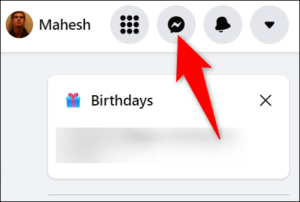
Then, in Facebook’s top-right corner, click the “Messenger” icon.
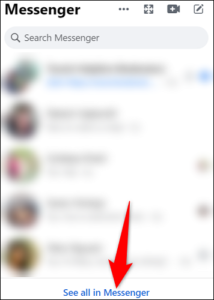
In the Messenger panel, at the bottom, click “See All in Messenger.”
In the “Chats” sidebar on the left, you will see all your conversations. Select the chat in which you want to delete messages.
On the right pane, find the individual message to delete. Then hover over that message, click the three dots, and choose “Remove.”
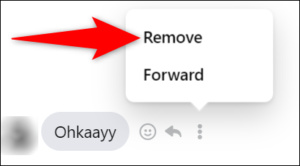
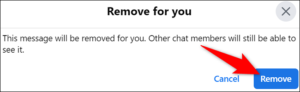
If you’ve selected the other party’s message and not yours, you will see a “Remove For You” window. Here, to remove the message from your chat history, click “Remove.” The other party will still have access to that message.
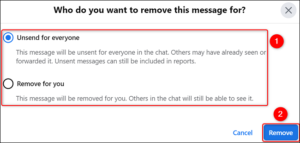
If you’ve selected your own message, you will see a “Who Do You Want to Remove This Message For?” window. In this window, if you want to remove the message for both you and the receiver, click “Unsend For Everyone.” To remove the message only from your own chat history, select “Remove For You.”
Then, in the window’s bottom-right corner, click “Remove” and your message will be deleted.
If you’d like to delete an entire conversation, then in the left sidebar, find that conversation.
Hover over that chat, click the three dots, and choose “Delete Chat.”
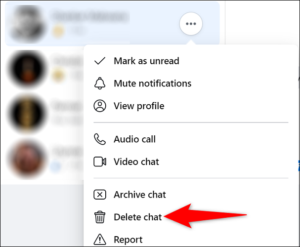
Click “Delete Chat” in the prompt.
Warning: You can’t restore your deleted chat so make sure you’re okay with losing it forever.
And Facebook will delete your selected chat for good. You’re all set.
Remove Facebook Messenger Messages on Mobile
On your iPhone, iPad, or Android phone, make use of the Messenger app to delete your individual messages or entire chats.
Start by launching Facebook Messenger on your phone. In the app, tap the conversation from which you want to remove messages.
On the conversation page, tap and hold on to the message to remove. If you’ve selected the other party’s message, then in the menu that opens, select More > Remove. The message is deleted on your end, but the other party can still access it.
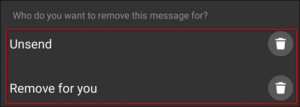
If you’ve selected your own message, then tap “Remove.” To delete the message from everyone involved in the chat, choose “Unsend.” To remove the message only from your own chat history, select “Remove For You.”
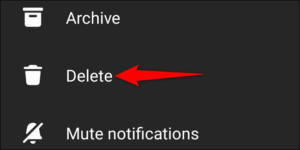
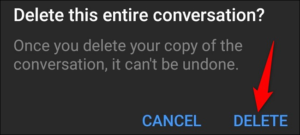
You can also delete entire chats with someone. To do so, in Messenger, tap and hold on to the chat to delete. Then, in the menu that opens, select “Delete.”
Tap “Delete” in the prompt.
Warning: You can’t restore your deleted messages so make sure you really don’t want to keep them.
And you’ve successfully deleted your messages from Facebook Messenger. Enjoy!
VIA howtogreek