
Because of its functions and features, Excel is a great application for budgeting along with managing your money. If you already use it for finances, make your spreadsheet even more effective by calculating loan elements like payments, interest, or terms.
Maybe you are contemplating a new car loan and want to know the payment ahead of time. You can use Excel to adjust the interest rate and payment term to see what you can afford. At the same time, you may have payment information on a current loan and want to see your interest rate or payment term.
With a few simple functions and your data, you can easily get basic loan calculations in Microsoft Excel.
Calculate a Loan Payment in Excel
For many people, affording a new car involves knowing what the monthly payment will be. To find out in Excel, you simply need the basic loan information and a handy function.
Get the annual interest rate, number of payments you’d like, and total loan amount and enter these into your sheet. Select the cell where you want to calculate the monthly payment; this is where you’ll insert the PMT (payment) function.
The syntax for the function is PMT(rate, number_payments, loan_amount, future_value, type). The only required arguments are the first three for interest rate, number of payments, and loan amount.
To get the monthly payment amount for a loan with four percent interest, 48 payments, and an amount of $20,000, you would use this formula:
=PMT(B2/12,B3,B4)
As you see here, the interest rate is in cell B2 and we divide that by 12 to obtain the monthly interest. Then, the number of payments is in cell B3 and loan amount in cell B4.
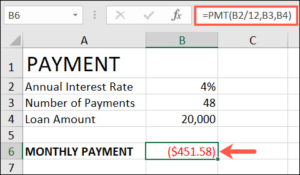
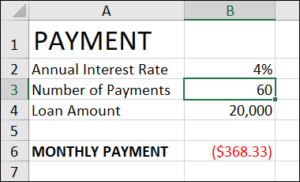
By making slight adjustments to the constants, you can see what your payment would be if you had a different interest rate, made more or fewer payments, or changed the loan amount. When you adjust these figures, the formula updates automatically.
For example, maybe the monthly payment is more than you can afford. By increasing the number of payments, you can see how much the monthly payments decrease.
Formula to Calculate an Interest Rate in Excel
Maybe you have an existing loan and want to quickly see the annual interest rate you’re paying. As simple as calculating a payment with basic loan details, you can do the same to determine the interest rate.
Get the loan term, monthly payment, and loan amount and enter them in your sheet. Select the cell where you want to see the interest rate. You’ll then enter the formula for the RATE function.
The syntax for the function is RATE(term, payment, loan_balance, future_value, type) where the first three arguments are required for the term (in months or years as explained below), payment amount, and loan balance.
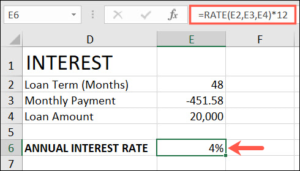
Using the same example as above, we have the term as 48 months with the monthly payment as $451.58 and the loan amount as $20,000. You would use this formula:
=RATE(E2,E3,E4)*12
Here, the details are in order in the corresponding cells in the formula. We add *12 at the end because we want the annual interest rate (12 months).
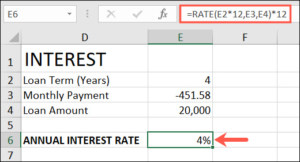
You can also enter the loan term in years instead of months and adjust the formula as follows:
=RATE(E2*12,E3,E4)*12
The E2*12 portion multiples the number of years in cell E2 by 12 for the number of months in the term.
How to Calculate a Payment Term in Excel
One more handy loan calculation that can help you out is determining the payment period. You can see the number of months for a loan depending on the details.
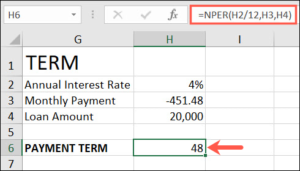
Gather the annual interest rate, monthly payment, and loan amount and place them in your sheet. Select the cell where you want to see the term and then use the NPER function to find the payment period.
The syntax for the function is NPER(rate, payment, loan_amount, future_value, type) where the first three arguments are required for rate, payment, and loan amount.
To use our same example, we have an annual interest rate of four percent, a payment of $451.58, and a loan amount of $20,000. Then, use this formula:
=NPER(H2/12,H3,H4)
Cell H2 contains our interest rate and because it’s the annual rate we divide it by 12. Then, H3 and H4 contain the other details.
Optional Arguments for Loan Calculations
As mentioned with each function above, the future_value and type arguments are optional. Here’s a brief explanation of each if you’d like to include them in your formula.
Future Value: The amount you want after the final payment is made. Since this is assumed to be zero because you are paying an amount you owe, we omitted the argument. This may be a helpful argument to use in a formula for calculating an investment rather than a loan.
Type: This indicates when payments are due and is either 0 for the end of a period or 1 for the beginning of a period. If the argument is omitted, the function uses 0 by default.
You can probably find a loan calculator with a Google search or even on your lender’s website. But if you want to do some calculations in your own financial workbook or budget spreadsheet, these functions and formulas make it easy.
VIA howtogreek