Popular instant messaging service WhatsApp has over 2 billion active international users, with over 100 billion messages sent daily. Ranked as one of the most used messaging applications, the instant messenger has acquired over a billion new users in the last four years.
Similar to other apps, WhatsApp needs to take care of the privacy and security of its users.
By default, privacy settings are set to:
- Allow anyone to view your last seen, profile photo, about, and read receipts.
- Allow all of your contacts to view your status updates.
- Allow any user to add you to a group.
These features can be easily be changed via the in-app settings for both mobile and desktop versions of WhatsApp.
1. Last Seen
The Last Seen feature allows users to view the last time they viewed messages on WhatsApp. It allows users to select from three different options: hide it from everyone, your contacts, or no one.
To change your Last Seen privacy settings, you can follow these steps:
Android: Tap the Three-dot Menu > Settings > Account > Privacy > Last Seen
iPhone: Tap Settings > Account > Privacy > Last Seen
Desktop: Tap the Three-dot Menu > Settings > Privacy > Last Seen
2. Read Receipts
When a message is sent or received through WhatsApp, tick marks appear next to the message implying different meanings:
 Single grey tick: The message has been sent
 Double grey tick: the message was successfully received by the recipient
 Double blue tick: the message has been read by the recipient
For group chats, the double blue check marks appear when all the participants in the group have successfully read the message.
For individual messages, you can check details of a message such as when a message was delivered, read, and by whom. To check the status of an individual message:
- Open a chat
- Tap and hold a sent message
- Tap on the info icon
Note that WhatsApp does not allow users to turn off read receipts for voice messages or group chats.
How to Turn Read Receipts ON or OFF
To turn off read receipts, follow these steps:
Android: Tap the three-dot menu > Settings > Account > Privacy > Read Receipts
iPhone: Tap Settings > Account > Privacy > Toggle the Read Receipts Button
Desktop: Tap the three-dot menu > Settings > Privacy > Read Receipts
3. Two-Step Verification for an Added Layer of Security
An optional feature for WhatsApp for an extra layer of security is two-step verification. Enabling the feature will require you to first authenticate your account using a custom-set PIN. whenever you would like to register your phone number for a WhatsApp account.
How to Enable Two-Step Verification
- Open WhatsApp settings.
- Tap Account > Two-Step Verification > Enable.
- Enter a random six-digit PIN of your choice.
- You can choose to enter your email address in case you would like to reset two-step verification some time in the future or you can simply skip this step.
- Tap NEXT.
- Verify and confirm your email address.
- Tap SAVE or DONE.
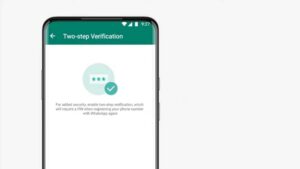
If you don’t wish to add an email address and forget your PIN, it will take you 7 days before you can reset your PIN.
How to Disable Two-Step Verification
In case you want to disable Two-Step verification on your account:
- Open WhatsApp settings.
- Tap Account > Two-Step Verification > Disable
How to Change your Two-Step Verification PIN
- Open WhatsApp settings.
- Tap Account > Two-Step Verification > Change PIN.
How to Change or Add Email Address
If you decide to add your email address:
- Open WhatsApp settings.
- Tap Account > Two-Step Verification > Add Email Addres
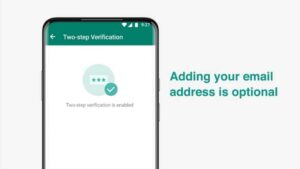
If you wish to change your email address:
- Open WhatsApp settings.
- Tap Account > Two-Step Verification > Change Email Address.
4. View Once Messages
After a recent update, WhatsApp allows users to send photos and videos that disappear once they have been opened. The latest version of instant messenger lets users send photos or videos that cannot be viewed again, forwarded, saved, shared, or starred.
View Once messages expire after 14 days of being sent, if not opened by the recipient.
For View Once messages, you can only view if the receiver has opened the photo or video if they have read receipts turned on. For such messages, it is still possible for another person to take screenshots or screen record the material OR take a photo or record from another device.
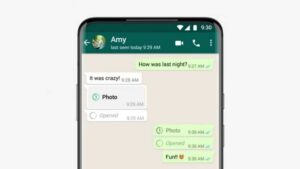
Recipients can report View Once media, in which case the media is provided to WhatsApp for further investigation.
How to Send a View Once Message
To send a photo or video that can only be viewed once:
- Open an individual or group chat.
- Tap on the + icon on the bottom left.
- Select Photo & Video Library.
- Tap on the photo or video that you would like to send.
- At the bottom right, tap on the icon, which turns blue when selected.
5. Screen Lock and Fingerprint Lock
Another additional security feature available for WhatsApp is to enable Touch ID or Face ID for unlocking the application.
The Screen Lock or Fingerprint lock adds an extra layer of security to the app, while still allowing you to reply to messages from the notification center or receive and answer calls while WhatsApp is locked.
How to Enable Screen Lock
To enable Touch ID or Face ID on WhatsApp, permissions need to be granted by:
- Open WhatsApp settings.
- Tap Account > Privacy > Screen Lock.
- Turn on the Require Touch ID or Require Face ID feature.
- Select the time before Touch ID or Face ID is enabled.
How to Enable Fingerprint Lock
On select smartphones, Touch ID works the same as Fingerprint Locks. When enabled, you will have to use your fingerprint for access to the app.
To enable Fingerprint Lock:
- Open WhatsApp.
- Tap More Options.
- Tap Settings > Account > Privacy.
- Turn on Unlock with Fingerprint.
- Confirm your fingerprint by touching on the fingerprint sensor.
- You can tap to select the number of times before fingerprint authentication is prompted.
Are there other WhatsApp privacy features you know about? Sound off in the comments.
Feature image via Hamariweb.