Close Menu
    Facebook X (Twitter) Instagram
    Tech Chacho
    • News
    • Mobile
    • Gadgets
    • Enterprise
    • Security
    • Reviews
    • Startups
    • How To’s
    • More
      • Fintech
      • Education
      • Cryptocurrency
    Facebook X (Twitter) Instagram
    Tech Chacho
    Home » How to Edit or Delete Contacts in Gmail
    How to Edit or Delete Contacts in Gmail
    How To's

    How to Edit or Delete Contacts in Gmail

    April 22, 2022Updated:April 22, 2022No Comments3 Mins Read
    Share
    Facebook Twitter LinkedIn Pinterest Email

    If you want to change a contact’s saved details, or you’d like to get rid of contact forever, Gmail makes it easy for you to update and delete your contacts. Here’s how to do that on desktop, Android, iPhone, and iPad.

    Know that no matter what device you delete a Gmail contact on, that contact will be gone from your Google account. This is because all your Google account-linked contacts are synced universally, and you can’t have a contact on one device while having it removed from another.

    Before you begin to remove your contacts, you may want to export your contacts.

    Table of Contents

    Edit or Delete Gmail Contacts on the Web
    Modify or Remove Gmail Contacts on Android
    Update or Clear Gmail Contacts on iPhone or iPad

    Edit or Delete Gmail Contacts on the Web

    To delete a contact from your Windows, Mac, Linux, or Chromebook computer, use Google’s official Contacts website.

    Start by launching your favorite web browser and opening the Google Contacts site. There, log in to your account if you haven’t already.

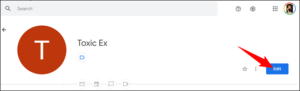
    After logging in, from the contact list on your screen, choose the contact you want to update or delete. Then, if you want to edit the contact, click “Edit” in the top-right corner.
    How to Edit or Delete Contacts in Gmail

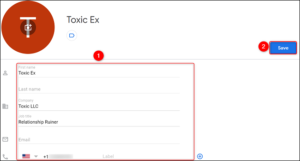
    Your selected contact’s edit page will open. Here, change any of the contact details you want. Then, save your changes by clicking “Save” in the top-right corner.
    How to Edit or Delete Contacts in Gmail

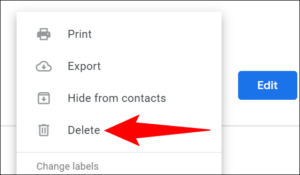
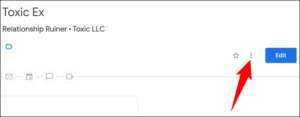
    If you want to remove a contact, then in the top-right corner of the contact page, click the three dots.
    How to Edit or Delete Contacts in Gmail

    Choose “Delete” from the menu.

    How to Edit or Delete Contacts in Gmail

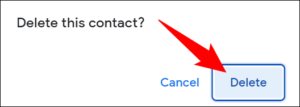
    Confirm your choice by clicking “Delete” in the prompt.
    How to Edit or Delete Contacts in Gmail

    And your selected contact is now removed from Gmail as well as all other devices that sync to your Google account.

    Modify or Remove Gmail Contacts on Android

    If you’re on an Android phone, use the Google Contacts app to change or delete your saved contacts.

    To start, launch the Contacts app on your phone. Then tap the contact you want to update or delete.

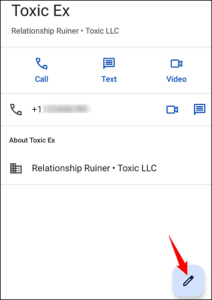
    If you want to update your selected contact, then in the contact page’s bottom-right corner, tap the pencil icon.
    How to Edit or Delete Contacts in Gmail

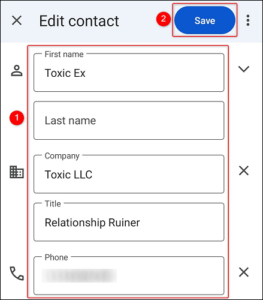
    Update the details you want for your contact. Then, at the top-right corner, tap “Save” to save your updates.
    How to Edit or Delete Contacts in Gmail

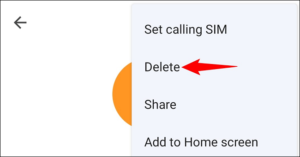
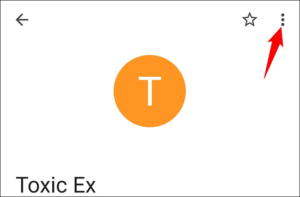
    To delete your contact, then in the contact page’s top-right corner, select the three dots.
    How to Edit or Delete Contacts in Gmail

    Choose “Delete” from the menu.

    How to Edit or Delete Contacts in Gmail

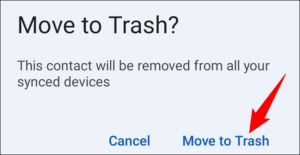
    Select “Move to Trash” in the prompt.
    How to Edit or Delete Contacts in Gmail

    And your chosen contact is now gone from your Gmail account.

    Update or Clear Gmail Contacts on iPhone or iPad

    If you sync your Google contacts with your iPhone or iPad, use the Apple Contacts app on your phone to update or remove your contacts.

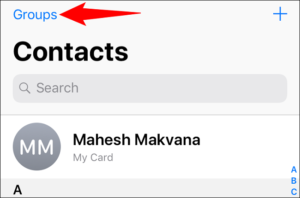
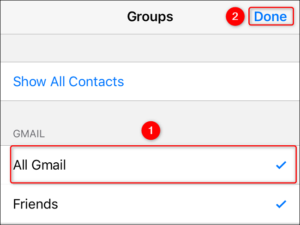
    Start the process by launching the Contacts app on your phone. To ensure the app only shows your Gmail contacts, in the top-left corner, tap “Groups.”
    How to Edit or Delete Contacts in Gmail

    On the “Groups” page, enable the “All Gmail” option. Deselect all other options, then tap “Done” in the top-right corner.
    How to Edit or Delete Contacts in Gmail

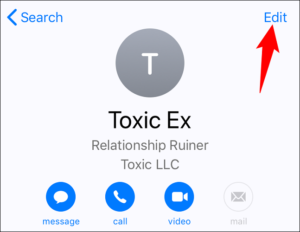
    Back on the app’s main page, find and select the contact to edit or delete. When the contact page opens, in the top-right corner, tap “Edit.”
    How to Edit or Delete Contacts in Gmail

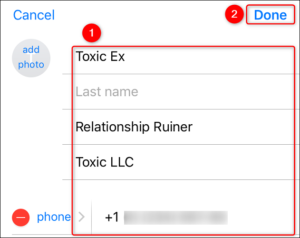
    To update your contact details, do so on the page that opens. Then, in the top-right corner, tap “Done” to save your changes.
    How to Edit or Delete Contacts in Gmail

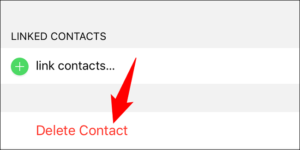
    If you’re looking to remove the selected contact, then scroll the contact page to the bottom. There, tap “Delete Contact.”
    How to Edit or Delete Contacts in Gmail

    Select “Delete Contact” in the menu that opens.
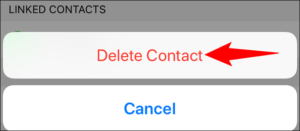
    How to Edit or Delete Contacts in Gmail

    And your selected contact is now deleted. Enjoy!

    VIA howtogreek


    Share. Facebook Twitter Pinterest LinkedIn Tumblr Email

    Related Posts

    How to Cancel Your Netflix Subscription

    April 27, 2022

    How to Insert and Animate 3D Models in Microsoft PowerPoint

    April 27, 2022

    How to Copy Values From the Status Bar in Microsoft Excel

    April 25, 2022
    Ad

    Samsung Galaxy Z Fold 6 Appears in Renders Again With No S-Pen Slot

    February 28, 2024

    ProPakistani Unveils Tecno Innovations at MWC 2024: A Glimpse into the Future of Technology

    February 28, 2024

    University of Management and Technology Hit by a Massive Hacker Attack

    February 28, 2024

    PTCL Group Announces Shoq TV Box Powered by Android TV at Mobile World Congress

    February 28, 2024

    All You Need to Know About Stylish and Feature-Packed vivo Y17s Diamond Orange Edition

    February 28, 2024

    HMD Teases Its First Self Branded Phones Instead of Nokia

    February 28, 2024

    Subscribe to Updates

    Get the latest creative news from FooBar about art, design and business.

    • Facebook
    • Twitter
    • Instagram
    • YouTube
    Mobile

    Samsung Galaxy Z Fold 6 Appears in Renders Again With No S-Pen Slot

    By QuartulainFebruary 28, 20240
    Mobile

    ProPakistani Unveils Tecno Innovations at MWC 2024: A Glimpse into the Future of Technology

    By QuartulainFebruary 28, 20240
    Facebook X (Twitter) Instagram YouTube
    • About
    • Terms Of Use
    • Privacy Policy
    • Disclaimer
    • Affiliate Disclaimer
    © 2026 Designed by Chunk Labs Hosted on Host Chacho.

    Type above and press Enter to search. Press Esc to cancel.

    Go to mobile version