Close Menu
    Facebook X (Twitter) Instagram
    Tech Chacho
    • News
    • Mobile
    • Gadgets
    • Enterprise
    • Security
    • Reviews
    • Startups
    • How To’s
    • More
      • Fintech
      • Education
      • Cryptocurrency
    Facebook X (Twitter) Instagram
    Tech Chacho
    Home » How to Change Where Screenshots Are Saved on Windows 10 and 11
    How to Change Where Screenshots Are Saved on Windows 10 and 11
    How To's

    How to Change Where Screenshots Are Saved on Windows 10 and 11

    April 14, 2022Updated:April 14, 2022No Comments2 Mins Read
    Share
    Facebook Twitter LinkedIn Pinterest Email

    If you take screenshots in Windows 10 or Windows 11 using a common built-in shortcut, you can move your Screenshots folder to a location of your choice. Here’s how to do it.

    In Windows 10 or Windows 11, you can capture screenshots to a file using Windows+Print Screen. When you do so, Windows saves the shots automatically a special “Screenshots” folder, which is linked by default to to C:\Users\[User Name]\Pictures\Screenshots . However, it’s fairly easy to change this link so that these screenshots save to a different location (even on another drive or in a Dropbox folder, for example).

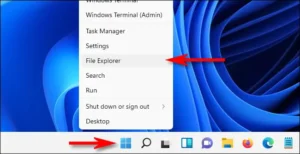
    To get started, first open File Explorer by pressing Windows+E on your keyboard. Or you can right-click the Start button and select “File Explorer.”
    How to Change Where Screenshots Are Saved on Windows 10 and 11


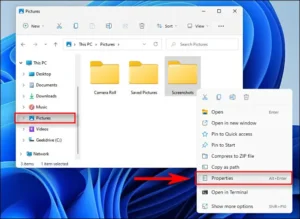
    When a File Explorer window opens, navigate to This PC > Pictures. Then right-click the “Screenshots” folder and select “Properties” in the menu that appears.
    How to Change Where Screenshots Are Saved on Windows 10 and 11


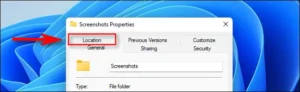
    In the “Screenshots Properties” window, select the “Location” tab.
    How to Change Where Screenshots Are Saved on Windows 10 and 11


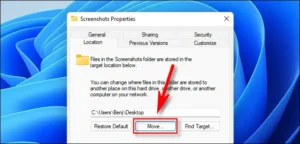
    Using the text box in the “Location” tab, you can type in the file path where you want Windows to save its screenshots. Or click the “Move” button, and you can browse to the new location using the “Select a Destination” window.

    Tip: You can save screenshots anywhere, including another drive, a cloud service, or a network share. But we recommend against using another special system folder like the desktop, because Windows will make the change permanent, and it even warns you that it can’t be undone. For example, if you want your screenshots to be easily accessible from your desktop, you might want to save them to a folder named “Screenshots” on your desktop rather than your desktop itself.
     

    ADVERTISEMENT

    How to Change Where Screenshots Are Saved on Windows 10 and 11

    When you find the location you want to use, click the “Select Folder” button, then confirm your changes by clicking “OK” in the Screenshot Properties window. If Windows asks if you want to move existing screenshot files to the new location, click “Yes” or “No” depending on your preference.

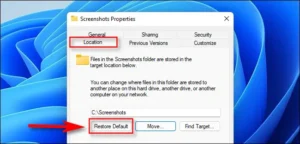
    The next time you take a screenshot using Windows+Print Screen, the file will be automatically saved in the new location. If you ever want to change the screenshot location back, browse to the new screenshot folder in File Explorer, right-click it and choose “Properties,” click the “Location Tab,” then select “Restore Default.”
    How to Change Where Screenshots Are Saved on Windows 10 and 11

    VIA howtogreek

    Share. Facebook Twitter Pinterest LinkedIn Tumblr Email

    Related Posts

    How to Cancel Your Netflix Subscription

    April 27, 2022

    How to Insert and Animate 3D Models in Microsoft PowerPoint

    April 27, 2022

    How to Copy Values From the Status Bar in Microsoft Excel

    April 25, 2022
    Ad

    Samsung Galaxy Z Fold 6 Appears in Renders Again With No S-Pen Slot

    February 28, 2024

    ProPakistani Unveils Tecno Innovations at MWC 2024: A Glimpse into the Future of Technology

    February 28, 2024

    University of Management and Technology Hit by a Massive Hacker Attack

    February 28, 2024

    PTCL Group Announces Shoq TV Box Powered by Android TV at Mobile World Congress

    February 28, 2024

    All You Need to Know About Stylish and Feature-Packed vivo Y17s Diamond Orange Edition

    February 28, 2024

    HMD Teases Its First Self Branded Phones Instead of Nokia

    February 28, 2024

    Subscribe to Updates

    Get the latest creative news from FooBar about art, design and business.

    • Facebook
    • Twitter
    • Instagram
    • YouTube
    Mobile

    Samsung Galaxy Z Fold 6 Appears in Renders Again With No S-Pen Slot

    By QuartulainFebruary 28, 20240
    Mobile

    ProPakistani Unveils Tecno Innovations at MWC 2024: A Glimpse into the Future of Technology

    By QuartulainFebruary 28, 20240
    Facebook X (Twitter) Instagram YouTube
    • About
    • Terms Of Use
    • Privacy Policy
    • Disclaimer
    • Affiliate Disclaimer
    © 2026 Designed by Chunk Labs Hosted on Host Chacho.

    Type above and press Enter to search. Press Esc to cancel.

    Go to mobile version